I was pushing a small CSS fix from Cursor’s terminal last week. One file changed, three lines added. The commit looked fine. I ran git push origin main and got this:
To https://github.com/you/your-repo.git
 ! [rejected]        main -> main (fetch first)
error: failed to push some refs to 'https://github.com/you/your-repo.git'
hint: Updates were rejected because the remote contains work that you do
hint: not have locally. This is usually caused by another repository pushing
hint: to the same ref. If you want to integrate the remote changes, use
hint: 'git pull' before pushing again.
hint: See the 'Note about fast-forwards' in 'git push --help' for details.
The error looks alarming. It isn’t. Git is doing exactly what it should: refusing to overwrite commits on the remote that your local copy doesn’t know about. Someone else pushed first, or you pushed from a different machine, or an AI coding tool committed on your behalf from another session. The remote moved forward without you.
The fix takes about thirty seconds once you know which variant you’re dealing with.
TLDR
Two things cause this error. If the remote has commits you don’t have, run git pull --rebase origin main then push again. If you rewrote local history (amended a commit, rebased a branch), run git push --force-with-lease origin main on branches you own. Never force push to main or any shared branch.
Two errors that look the same but aren’t
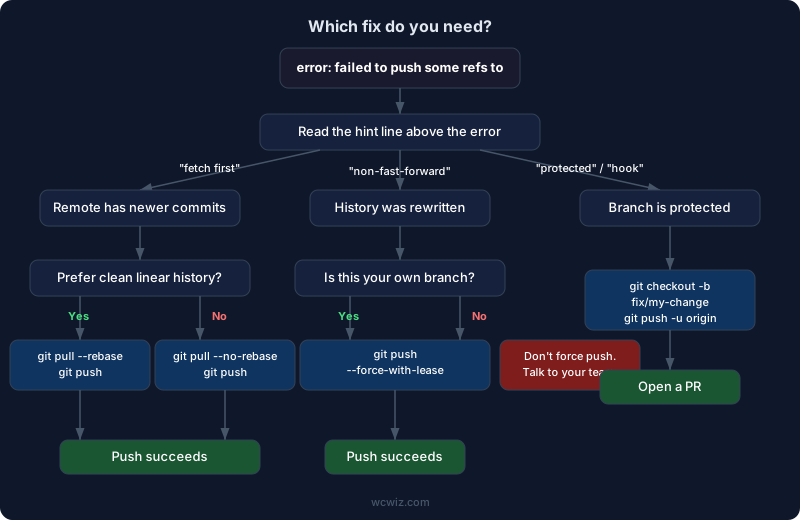
Git uses the same “failed to push some refs” message for two different problems. The difference is in the line right above it.
Variant 1: “fetch first”
! [rejected]        main -> main (fetch first)
error: failed to push some refs to 'https://github.com/you/your-repo.git'
This means the remote branch has commits your local branch doesn’t. Someone pushed before you did. Git can’t fast-forward the remote to include your commits without losing theirs, so it stops.
Variant 2: “non-fast-forward”
! [rejected]        main -> main (non-fast-forward)
error: failed to push some refs to 'https://github.com/you/your-repo.git'
This means your local branch’s history doesn’t match the remote’s. It happens when you amend a commit that was already pushed, or rebase a branch that’s already on the remote. The commit hashes changed locally, so from Git’s perspective your branch and the remote branch tell two different stories about the same code.
Read the hint line above the error. It tells you which variant you have.
Fix 1: remote has newer commits
This is the most common cause. You committed locally, someone else pushed to the same branch in the meantime, and now your push gets rejected.
The cleanest fix is git pull --rebase:
git pull --rebase origin main
git push origin main
What this does: Git fetches the remote commits, then replays your local commits on top of them. Your changes end up at the tip of the branch, the remote commits stay where they are, and the history reads as a straight line.
If your changes don’t touch the same files as the remote commits, this completes silently:
From https://github.com/you/your-repo
 * branch            main       -> FETCH_HEAD
Successfully rebased and updated refs/heads/main.
If both sides touched the same file, Git pauses on a conflict. Fix the conflict in the affected files, then:
git add .
git rebase --continue
git push origin main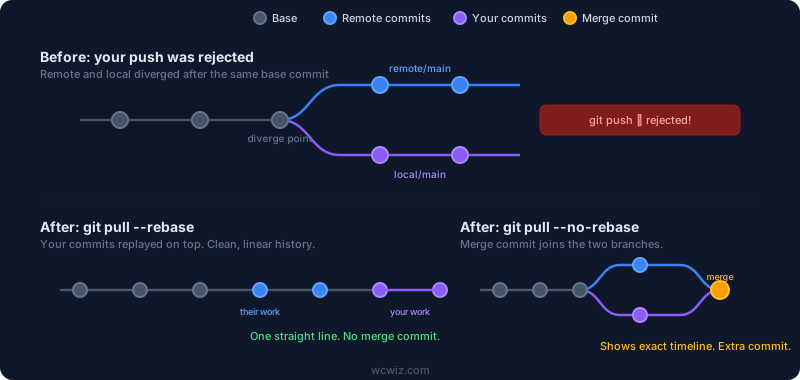
The merge approach
If you prefer a merge commit instead of a rebase:
git pull --no-rebase origin main
git push origin main
This creates a merge commit like Merge branch 'main' of github.com:you/your-repo. The history looks busier but nothing gets rewritten. Some teams prefer this because it preserves the exact timeline of who pushed what and when.
A note about modern Git
Git 2.x and newer won’t let you run a bare git pull without telling it which strategy you want. If you try, you’ll see this:
hint: You have divergent branches and need to specify how to reconcile them.
hint: You can do so by running one of the following commands sometime before
hint: your next pull:
hint:
hint:   git config pull.rebase false  # merge
hint:   git config pull.rebase true   # rebase
hint:   git config pull.ff only       # fast-forward only
Pick one and set it globally so you never see this again. I use rebase:
git config --global pull.rebase trueAfter that, git pull origin main will always rebase by default.
Fix 2: you rewrote history that was already pushed
If you amended a commit or rebased after pushing, the commit hashes changed. Your local branch and the remote branch have diverged even though the code might be identical.
A regular git pull won’t help here. It would try to merge the old version of the commit with the new version, creating a mess.
The fix is a force push, but the safe kind:
git push --force-with-lease origin main--force-with-lease checks that the remote branch is still in the state you last saw. If someone else pushed in the meantime, it refuses. That’s the difference between --force-with-lease and a plain --force. The plain version overwrites whatever is on the remote without checking. On a branch where you’re the only contributor, either works. On a shared branch, --force-with-lease is the difference between a smooth afternoon and an apologetic message to your team.
One caveat: if your editor (VS Code, Cursor, IntelliJ) auto-fetches in the background, --force-with-lease silently updates its reference point and becomes no safer than plain --force. Git 2.30 added --force-if-includes to catch this. Use both together for the strictest check:
git push --force-with-lease --force-if-includes origin mainI covered --force-with-lease in more detail in the email privacy restrictions fix, where it comes up when rewriting author lines across multiple commits.
Fix 3: the branch is protected
If you’re pushing to main or develop on a team repository, branch protection rules might block direct pushes entirely. The error looks slightly different depending on the hosting platform, but the “failed to push some refs” line is the same.
On GitHub, the inner line says something like:
! [remote rejected] main -> main (protected branch hook declined)No amount of pulling or rebasing fixes this. The branch rules are doing their job. The fix is to push to a feature branch and open a pull request:
git checkout -b fix/my-change
git push -u origin fix/my-change
Then create the pull request on GitHub. This is the intended workflow for protected branches, and most team repositories have main protected for good reason.
Fix 4: you created a GitHub repo with a README, then tried to push a local project
This catches more beginners than any other variant. You git init a project locally, create a new repo on GitHub with the “Initialize this repository with a README” checkbox ticked, add the remote, and push. It fails because the two repositories have completely separate histories that share no common ancestor.
The error message includes “unrelated histories” somewhere in the output. The fix is a one-time flag:
git pull origin main --allow-unrelated-histories
git push origin main
Git merges the two unrelated histories into one and lets you push. You only need this flag once. After the merge, the histories are connected and future pushes work normally.
The cleaner approach is to skip the checkbox. Create the GitHub repo empty (no README, no .gitignore, no license) and push your local project directly. Then add a README in the next commit.
When none of the above applies
A few less common causes that produce the same umbrella error:
Wrong remote URL. If the remote points to a repo you don’t have write access to, the push fails. Check with git remote -v and fix with git remote set-url origin <correct-url>.
Authentication expired. A stale personal access token or an SSH key that GitHub no longer recognizes produces a push failure. The error message usually includes “permission denied” or “authentication failed” above the “failed to push” line. Regenerate your token at GitHub Settings > Developer settings > Personal access tokens or re-add your SSH key.
Large file rejection. GitHub rejects files over 100 MB. The error includes “this exceeds GitHub’s file size limit” in the hint. Remove the large file from the commit with git rm --cached <file> and consider Git LFS if you need to track large files.
Secret detected in commit. GitHub’s push protection scans for API keys and tokens. I wrote a full walkthrough of this one in the push declined due to repository rule violations guide, including how to scrub the secret from your entire history with git-filter-repo.
The one habit that prevents this error
Run git pull --rebase origin main before you start working. Not after you’ve committed and tried to push. Before.
If you pull before you start, your local branch is already up to date with the remote. When you push later, the remote hasn’t moved (unless someone else pushed in the last few minutes), and the push goes through on the first try. The error only happens when your local branch falls behind, and pulling first keeps it from falling behind.
For a project where you’re the only contributor, this barely matters. For a team project, or when you work across multiple machines, or when an AI tool is committing on your behalf from a different environment, it matters a lot. One git pull at the start of a session saves you from debugging a push rejection at the end of it.