You check the browser console and there it is:
Uncaught ReferenceError: jQuery is not defined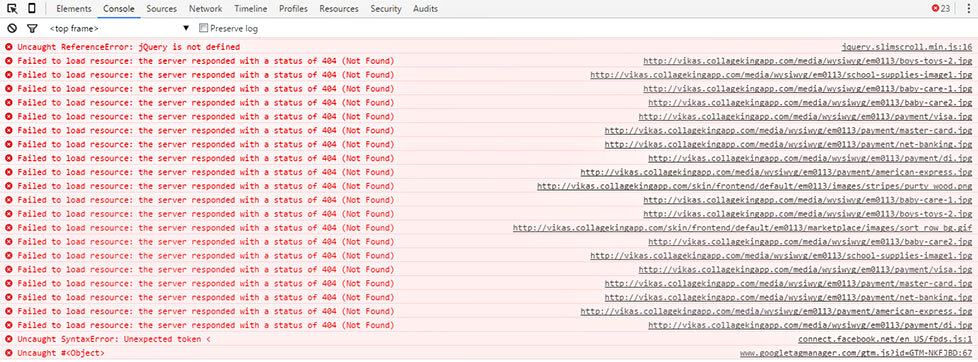
Something on your site tried to use jQuery before it was available. It’s one of the most common JavaScript errors in WordPress, and in 2026, it shows up more often than you’d expect because of how block themes and performance plugins handle scripts differently.
TLDR
This error means jQuery hasn’t loaded yet when a script tries to use it. The fix depends on the cause: if a performance plugin is deferring jQuery, exclude /wp-includes/js/jquery/jquery.min.js from optimization. If a block theme isn’t loading jQuery at all (they don’t by default), enqueue it explicitly. If a custom script is missing the jquery dependency in wp_enqueue_script, add it.
Why this happens
jQuery is a JavaScript library that WordPress has shipped with since the early days. Themes and plugins use it for interactive features like dropdown menus, sliders, AJAX calls, and checkout behavior.
The error fires when a script runs jQuery(...) or $(...) but the jQuery file hasn’t loaded yet. Four common reasons:
- A performance plugin (WP Rocket, Autoptimize, LiteSpeed Cache) deferred or delayed jQuery’s loading.
- A block theme doesn’t enqueue jQuery at all. Block themes built on the Site Editor and Interactivity API don’t need it, so WordPress doesn’t load it unless something explicitly requests it.
- A custom script was enqueued without listing
jqueryas a dependency. - A CDN-hosted version of jQuery failed to load or was blocked.
Fix 1: exclude jQuery from optimization plugins
This is the most common cause in 2026. Performance plugins delay or defer JavaScript to improve page speed scores, but jQuery can’t be deferred safely if other scripts depend on it loading first.
In WP Rocket, go to File Optimization > JavaScript and add this to “Excluded JavaScript files”:
/wp-includes/js/jquery/jquery.min.jsIn Autoptimize, go to JS, CSS & HTML and add the same path to “Exclude scripts from Autoptimize”.
In LiteSpeed Cache, go to Page Optimization > JS Settings and add it to the JS Excludes list.
Clear the cache after making the change.
Fix 2: enqueue jQuery in a block theme
Block themes (Twenty Twenty-Five and similar) don’t load jQuery by default. They use the Interactivity API and vanilla JavaScript instead. If a plugin expects jQuery but your block theme doesn’t load it, the error shows up on the frontend.
Add this to your child theme’s functions.php or use a code snippets plugin like WPCode:
add_action( 'wp_enqueue_scripts', function () {
    wp_enqueue_script( 'jquery' );
} );
This loads the jQuery version bundled with WordPress. No external CDN, no version conflicts.
One thing to keep in mind: this adds an extra script to every page load. If only one plugin needs jQuery, check if that plugin has a “no jQuery” or “vanilla JS” mode. Some have added one in recent updates.
Fix 3: add the jquery dependency to custom scripts
If you wrote (or inherited) a custom script that uses jQuery, make sure it’s registered with the right dependency:
wp_enqueue_script(
    'my-custom-script',
    get_template_directory_uri() . '/js/custom.js',
    array( 'jquery' ),
    '1.0.0',
    true
);
The array( 'jquery' ) part tells WordPress to load jQuery before your script runs. Without it, your script races jQuery and often loses.
Fix 4: check for CDN failures
Some setups load jQuery from a CDN (Google, cdnjs, Cloudflare) instead of the bundled copy. If the CDN is slow or blocked in certain regions, jQuery never loads and every script depending on it breaks.
The safest approach is sticking with the copy WordPress ships. If you need a CDN for performance reasons, add a local fallback:
<script src="//ajax.googleapis.com/ajax/libs/jquery/3.7.1/jquery.min.js"></script>
<script>
window.jQuery || document.write('<script src="/wp-includes/js/jquery/jquery.min.js"><\/script>');
</script>
For most sites, using the bundled version is simpler and avoids this problem entirely.
Fix 5: disable script concatenation
WordPress concatenates admin scripts by default to reduce HTTP requests. Sometimes this concatenation breaks the load order. If you’re seeing the error in the admin area, add this to wp-config.php:
define( 'CONCATENATE_SCRIPTS', false );This is a debugging step, not a permanent fix. It helps isolate whether concatenation is the culprit.
Fix 6: check for plugin and theme conflicts
If none of the above fixes it, a plugin or theme might be deregistering jQuery or loading a conflicting version.
Test by switching to a default theme (Twenty Twenty-Five works) and deactivating plugins one by one. If the error disappears after deactivating a specific plugin, that’s your culprit. Contact the plugin developer with the console error and they can usually point you to a setting or push a fix.
How to find the error
If you’re not sure whether this is your specific error, open the browser console:
- Chrome: Ctrl+Shift+J (Windows) or Cmd+Option+J (Mac).
- Firefox: Ctrl+Shift+K (Windows) or Cmd+Option+K (Mac).
Reload the page. If jQuery is the issue, the red error line will say jQuery is not defined or $ is not defined.
There’s a broader guide on debugging JavaScript errors in WordPress with the browser console that covers the full troubleshooting process.
The block theme future
jQuery’s role in WordPress is shrinking. Block themes don’t use it. The Interactivity API handles frontend interactivity natively. New plugins increasingly ship without jQuery dependencies.
If you’re building something new, consider whether you need jQuery at all. For existing sites running classic themes with plugins that depend on it, the fixes above will keep things working. The transition is gradual, not a cliff.