When a WordPress site breaks, the first useful thing you can do is find out what PHP is actually complaining about. WordPress ships with a built-in debugging system controlled by a few constants in wp-config.php. Turning them on reveals the errors hiding behind white screens, broken layouts, and plugins that silently fail.
TLDR
Add define( 'WP_DEBUG', true ); and define( 'WP_DEBUG_LOG', true ); to wp-config.php. Reproduce the issue. Check /wp-content/debug.log for the error. The log shows the exact file, line number, and error message causing the problem. Turn it off when you’re done.
The five debug constants
WordPress has five constants that control different aspects of debugging. Here’s what each one does and when to use it.
WP_DEBUG
The main switch. When set to true, WordPress starts reporting PHP errors, warnings, notices, and deprecated function calls that it normally hides.
define( 'WP_DEBUG', true );By itself, WP_DEBUG displays errors directly on the page. That’s useful during local development but not something you want visitors to see on a live site. Pair it with the next two constants.
WP_DEBUG_LOG
Writes all errors to a log file instead of (or in addition to) showing them on screen.
define( 'WP_DEBUG_LOG', true );The default log location is /wp-content/debug.log. You can also specify a custom path:
define( 'WP_DEBUG_LOG', '/home/user/logs/wp-errors.log' );A custom path is useful when you don’t want the log sitting in a web-accessible directory, or when your server requires logs in a specific location.
WP_DEBUG_DISPLAY
Controls whether errors show on the screen. Set this to false on live sites so visitors don’t see PHP errors while the log still captures everything.
define( 'WP_DEBUG_DISPLAY', false );
@ini_set( 'display_errors', 0 );
The @ini_set line is a safety net. Some server configurations override WP_DEBUG_DISPLAY at the PHP level, so suppressing display_errors directly makes sure nothing leaks to the frontend.
SCRIPT_DEBUG
Forces WordPress to load the full, unminified versions of core JavaScript and CSS files. It doesn’t affect PHP errors at all. It’s for debugging JavaScript issues where the minified files make stack traces unreadable.
define( 'SCRIPT_DEBUG', true );SAVEQUERIES
Stores every database query WordPress runs during a page load, along with how long each query took and which function called it.
define( 'SAVEQUERIES', true );Access the stored queries through the $wpdb->queries array. This is a performance tool, not a standard debugging constant. Each page load on a typical WordPress site runs 50 to 200+ queries, and storing all of them adds overhead. Only enable it when actively investigating slow queries, then turn it off.
The recommended setup
For debugging on a live site where visitors shouldn’t see errors:
define( 'WP_DEBUG', true );
define( 'WP_DEBUG_LOG', true );
define( 'WP_DEBUG_DISPLAY', false );
@ini_set( 'display_errors', 0 );
For local development where you want errors on screen:
define( 'WP_DEBUG', true );
define( 'WP_DEBUG_LOG', true );
define( 'WP_DEBUG_DISPLAY', true );
define( 'SCRIPT_DEBUG', true );
Place all of these before the line that says “That’s all, stop editing!” in wp-config.php.
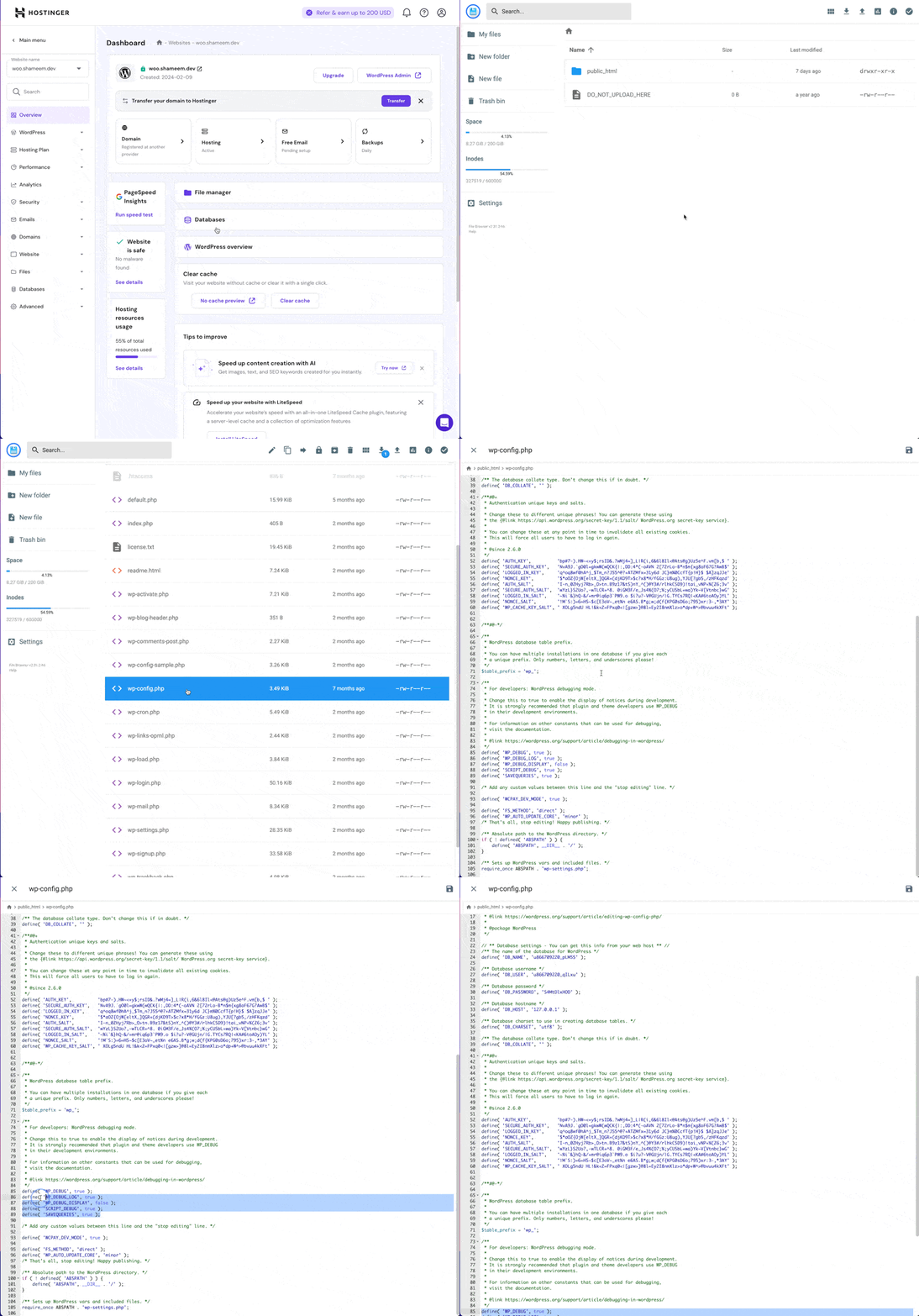
Reading the error log
After enabling WP_DEBUG_LOG, reproduce the issue (reload the broken page, trigger the failing action, run the checkout). Then open /wp-content/debug.log.
Entries look like this:
[05-Jun-2026 14:23:01 UTC] PHP Fatal error: Uncaught Error: Call to undefined function wc_get_product() in /var/www/html/wp-content/plugins/my-plugin/includes/class-product.php on line 42Each entry tells you:
- When the error happened.
- The severity (Fatal error, Warning, Notice, Deprecated).
- What went wrong.
- Which file and line number.
Fatal errors stop execution. Warnings and notices don’t stop anything but can indicate problems that will get worse. Deprecated notices mean a function or argument will be removed in a future WordPress version.
Finding the culprit
Search the log file for plugin or theme names. If multiple errors point to the same plugin directory, that plugin is the likely source.
Errors containing /wp-includes/ are in WordPress core. These are rare unless a very outdated WordPress version is running or something is overriding core files. Errors in /wp-content/plugins/ or /wp-content/themes/ point to third-party code.
If you’re reporting a bug to a plugin developer or to WooCommerce support, attach the relevant section of the debug log. It’s the single most useful piece of information for troubleshooting.
Debugging plugins
For a more visual approach, two plugins work well alongside WP_DEBUG:
Query Monitor adds a panel to the admin bar showing database queries, PHP errors, HTTP requests, hooks, and conditionals for each page load. It’s the most comprehensive debugging tool available as a plugin.
Debug Bar adds a simpler panel with query and cache information. Less detailed than Query Monitor but lighter weight.
Both plugins only show information to admin users and hide everything from visitors.
Turn it off when you’re done
Debug logging on a live site accumulates a large debug.log file over time. Some busy sites generate hundreds of megabytes in a day. After you’ve captured the information you need:
define( 'WP_DEBUG', false );Delete the debug.log file if it’s grown large. There’s no harm in removing it; WordPress creates a new one the next time debugging is enabled.
For development environments where you always want debugging on, consider setting WP_DEVELOPMENT_MODE alongside WP_DEBUG. The development mode constant handles caching behavior while WP_DEBUG handles error reporting.
References
- Debugging in WordPress (WordPress Developer Resources).
- The built-in WordPress debugging options (Learn WordPress).