I spent an embarrassing amount of time early in my WordPress career refreshing a page and seeing nothing change. The CSS was right, the theme.json values were right, but the output was stale. The problem was caching I didn’t know existed.
WordPress 6.3 introduced WP_DEVELOPMENT_MODE to fix exactly this. It tells WordPress what kind of development you’re doing and disables the caches that get in the way.
TLDR
Add define( 'WP_DEVELOPMENT_MODE', 'theme' ); to wp-config.php to disable theme.json caching during theme development. Use 'plugin' for plugin work, 'core' for WordPress core contributions, or 'all' to disable all development caches at once. Remove it (or set to '') on production sites.
What it does
WP_DEVELOPMENT_MODE accepts four values plus an empty string:
'theme'disablestheme.jsoncaching. Changes totheme.jsonand style variations show up immediately instead of being served from cache.'plugin'signals that you’re working on a plugin. As of WordPress 6.5, this mode enables additional checks and logging for plugin-related operations.'core'is for contributing to WordPress itself. It enables developer-focused behavior across the full codebase.'all'activates everything. Theme caching off, plugin mode on, core mode on. Use this when you’re working across multiple areas or just want all development caches out of the way.''(empty string) is the default. No development mode, all caches active. This is what production sites should use.
The biggest practical impact today is theme.json caching. WordPress caches the resolved output of theme.json for performance. During development, that cache means your changes don’t appear until the cache expires or gets flushed. Setting the mode to 'theme' or 'all' skips that cache entirely.
How to set it
Open wp-config.php and add one line before “That’s all, stop editing!”:
For theme development:
define( 'WP_DEVELOPMENT_MODE', 'theme' );For plugin development:
define( 'WP_DEVELOPMENT_MODE', 'plugin' );For everything at once:
define( 'WP_DEVELOPMENT_MODE', 'all' );Environment-aware setup
If your project uses different configs for different environments, tie it to WP_ENVIRONMENT_TYPE so the mode only activates outside production:
if ( defined( 'WP_ENVIRONMENT_TYPE' ) && 'production' !== WP_ENVIRONMENT_TYPE ) {
    define( 'WP_DEVELOPMENT_MODE', 'all' );
}
Or read from an environment variable:
$env = getenv( 'WP_ENVIRONMENT_TYPE' );
if ( $env && 'production' !== $env ) {
    define( 'WP_DEVELOPMENT_MODE', 'all' );
}
Either approach keeps the mode off in production automatically.
How to check if it’s working
Two ways.
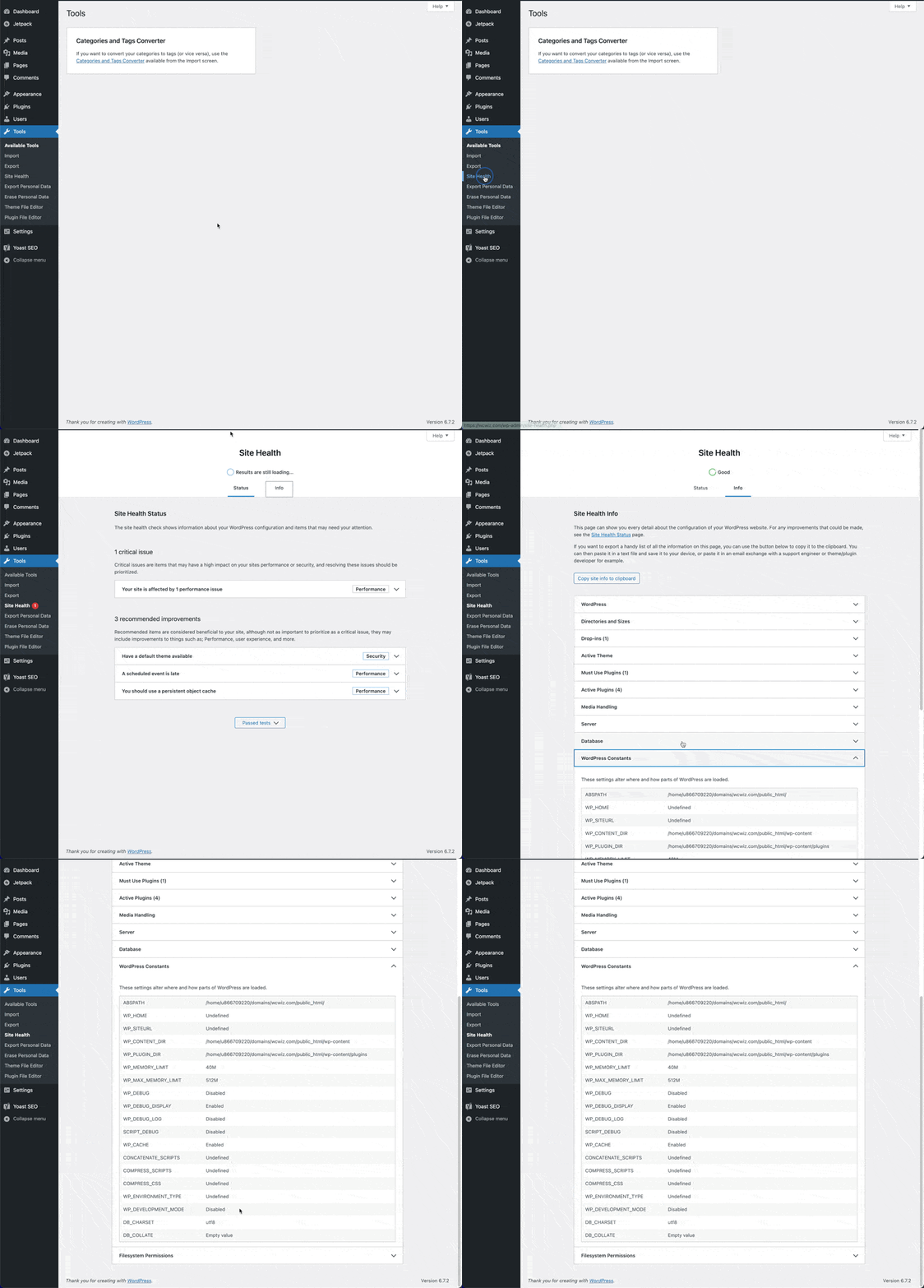
In WordPress 6.3+, go to Tools > Site Health > Info > WordPress Constants. The current value of WP_DEVELOPMENT_MODE shows up there.
In code, use wp_is_development_mode():
if ( wp_is_development_mode( 'theme' ) ) {
    // Theme-specific development logic.
}
This function returns true if the mode matches, or always true if the mode is set to 'all'.
Common mistakes
Defining it too late. The constant needs to be set before WordPress initializes. Put it near the top of wp-config.php, right after the database settings. If you define it after WordPress loads, it won’t have any effect.
Leaving it on in production. Development mode disables caches that exist for good reason on live sites. theme.json caching alone makes a measurable difference on page load times for block themes. Always remove or empty the constant before deploying.
Using 'core' when you don’t mean it. The 'core' mode enables behavior intended for people contributing to WordPress itself. For building themes or plugins, stick with 'theme', 'plugin', or 'all'.
Relationship to other debug constants
WP_DEVELOPMENT_MODE is separate from WP_DEBUG. WP_DEBUG controls PHP error reporting. WP_DEVELOPMENT_MODE controls development-specific caching behavior. You’ll often want both enabled during development, but they do different things.
Similarly, SCRIPT_DEBUG forces WordPress to load unminified JavaScript and CSS files. It’s complementary to WP_DEVELOPMENT_MODE, not a replacement.
A typical development wp-config.php might include all three:
define( 'WP_DEBUG', true );
define( 'WP_DEBUG_LOG', true );
define( 'WP_DEBUG_DISPLAY', false );
define( 'SCRIPT_DEBUG', true );
define( 'WP_DEVELOPMENT_MODE', 'all' );
References
- Configuring development mode in 6.3 (Make WordPress Core).
wp_get_development_mode()(WordPress Developer Resources).wp_is_development_mode()(WordPress Developer Resources).